Best overall: Rekkko. Best for team video messages: Loom for Chrome. Best for classroom recordings: Screencastify. The best screen recorder chrome extension in 2026 depends on whether you need an extension at all: Rekkko records in the browser, then gives you one link viewers can open without an account.
- Rekkko is the best screen recorder chrome extension alternative in 2026 for recording and sharing without an install.
- Loom for Chrome suits teams that use video messages and want viewer engagement information.
- Screencastify fits classroom recording; Vidyard fits sales outreach; Awesome Screenshot fits visual bug reports.
- Choose by the viewer's experience, not just the recording controls.
Why this matters
A Chrome extension and a browser-based recorder solve the same first problem: capturing what is on your screen. They differ before you press record. An extension must be installed in Chrome. A browser-based tool opens as a website. If your workplace restricts extensions, that difference decides which option you can use.
The second difference appears after recording. You need to trim what went wrong, send the result, and know what the viewer must do to watch it. A quick recording loses its advantage if you have to move it into another editor or explain how to open it. In 2026, compare the entire path from capture to viewing, not just the record button.
This guide includes true Chrome extensions and one browser-based alternative. That distinction is intentional. If your search for a screen recorder chrome extension really means a fast way to record in Chrome, excluding tools that need no extension would hide a useful choice.
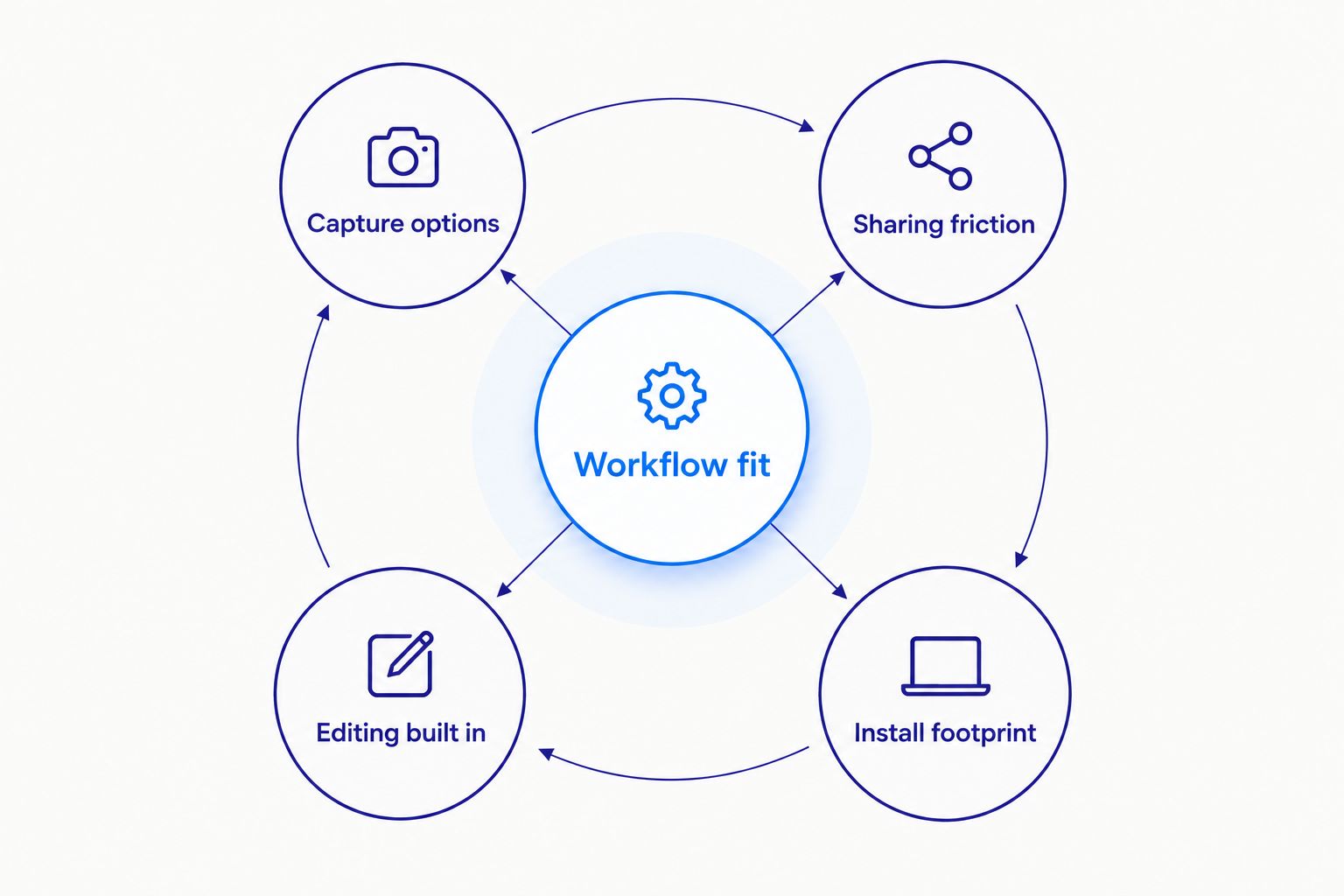
What makes the best screen recorder chrome extension
- Capture options: Can you record the screen, voice, and camera needed for your message?
- Sharing friction: Can the intended viewer open the result without extra steps?
- Editing built in: Can you remove mistakes before sending the recording?
- Install footprint: Does recording require a Chrome extension, or can you use a browser page?
- Workflow fit: Is the tool designed for your actual job, such as teaching, sales outreach, or bug reporting?
Do not treat every feature as equally important. A teacher assigning a lesson has a different sharing workflow from a sales representative sending a prospecting video. Start with the person receiving the recording, then choose the capture tool.
Screen recording tools at a glance
| Tool | Best for | Standout feature | Key limitation |
|---|---|---|---|
| Rekkko | Recording and sharing without an extension | A viewer can open one link without an account | It is not a Chrome toolbar extension |
| Loom for Chrome | Team video messages | Viewer engagement information | Requires an extension install |
| Screencastify | Classroom recordings | Google Classroom workflow | Education is its clearest fit |
| Awesome Screenshot & Screen Recorder | Visual bug reports | Screenshot annotation alongside recording | Annotation matters more here than transcript editing |
| Vidyard | Sales outreach | Video within prospecting workflows | Sales focus is unnecessary for a simple walkthrough |
The table is a decision guide, not a claim that every tool has the same features. Choose the row that matches the recording you need to make. Then check its limitations against the device and browser you will actually use.
1. Rekkko: best for recording without an extension
Rekkko is a browser-based screen recording tool, not a Chrome extension. It captures screen, voice, and camera for professionals and teams. After recording, you can trim through the transcript, remove filler words with AI editing, and share one link that a viewer opens without an account.
That makes it the default pick when you need to explain work to someone outside your team. You do not have to ask that person to install a tool or create a viewing account. The distinction is practical: the recording is only useful once its recipient can watch it.
Rekkko pros:
- Records screen, voice, and camera in the browser.
- Supports transcript trimming and filler removal.
- Shares through a single link that requires no viewer account.
- Does not require a Chrome extension install.
Rekkko cons:
- It is not a Chrome extension if you specifically need an extension in the browser toolbar.
- Its stated editing tools address trimming and filler words, not every kind of video edit.
Best for: professionals and teams sending screen recordings to people who should be able to watch immediately.
Verdict: Buy if you want a browser-based recorder rather than an extension.
2. Loom for Chrome: best for team video messages
Loom for Chrome puts recording in a Chrome extension and centers the result on a shareable video message. Its viewer engagement information helps when you need to understand whether a message has been watched. That is a different job from simply handing someone a screen capture.
Choose Loom when video is part of an ongoing team conversation. A project update, design explanation, or handoff has value beyond the initial recording when colleagues can return to the message. If your priority is avoiding an extension install, the Chrome extension is the wrong starting point.
Loom for Chrome pros:
- Records from a Chrome extension.
- Supports a video-message workflow for teams.
- Provides viewer engagement information.
Loom for Chrome cons:
- Requires you to install an extension before recording through Chrome.
- Engagement information adds little if you only need to send a recording once.
Best for: teams using screen recordings as recurring video messages.
Verdict: Buy for that workflow; otherwise, choose a simpler route to a shareable recording.
3. Screencastify: best for classroom recordings
Screencastify is a Chrome extension built around recording and sharing educational material. Its Google Classroom integration gives teachers a direct reason to choose it over a general-purpose recording tool. The question is not whether it can capture your screen; it is whether the recording belongs in a classroom workflow.
A teacher explaining an assignment needs a different destination for a video than a consultant explaining a document to a client. If Google Classroom is where students receive the work, make that connection part of the buying decision. If there is no classroom in your workflow, the specialization stops being an advantage.
Screencastify pros:
- Works as a Chrome extension.
- Fits lesson and assignment recordings.
- Connects with Google Classroom.
Screencastify cons:
- Its classroom focus offers less reason to choose it for sales or client walkthroughs.
- You still need to install and manage a browser extension.
Best for: teachers recording material for students in Google Classroom.
Verdict: Buy for classroom use; skip for general business updates.
4. Awesome Screenshot & Screen Recorder: best for visual bug reports
Awesome Screenshot & Screen Recorder combines screen recording with screenshot capture and annotation. That pairing is useful when a still image with markup explains the problem better than a video alone. Show the failure in motion, then mark the exact area that needs attention.
Use it for a bug report that requires visual evidence. A short recording can show the sequence of actions. An annotated screenshot can identify the affected control or page area without asking the recipient to replay the whole clip. That is a narrower job than sending a polished narrated update.
Awesome Screenshot & Screen Recorder pros:
- Handles screenshots and screen recordings in one extension.
- Includes annotation tools for visual explanations.
- Suits reports where a marked-up still image supports a video.
Awesome Screenshot & Screen Recorder cons:
- Its screenshot-and-annotation focus is less relevant to a voice-led team update.
- It adds an extension even if you only need to record and share a link.
Best for: testers and support staff explaining visible issues on a page.
Verdict: Buy for visual bug reports; hold if annotations are not part of your work.
5. Vidyard: best for sales outreach recordings
Vidyard focuses on video as part of a sales workflow. It lets a representative use a recording to explain something to a prospect rather than send another text-only message. Its sales-tool connections matter when the recording belongs inside prospecting activity, not in a general team library.
Before choosing it, define the recipient. A personalized prospecting video is not the same as an internal process walkthrough. If outreach is the job, a sales-focused tool has a clear purpose. If you only need to show a colleague where to find a setting, that focus adds a workflow you do not need.
Vidyard pros:
- Designed for sales video outreach.
- Connects recording with prospecting workflows.
- Gives sales teams a dedicated place for video messages.
Vidyard cons:
- Its sales focus is unnecessary for classroom or bug-report recordings.
- It is a narrower default choice than a general screen recorder.
Best for: sales teams making prospect-specific videos.
Verdict: Buy for outreach; skip for occasional internal walkthroughs.
How we ranked these tools
The ranking starts with the complete task: record, edit if needed, and share with the intended viewer. It then weighs install footprint and workflow fit. That is why a browser-based option leads a guide about extensions. An extension is a delivery method, not the outcome the reader wants.
Each recommendation has a separate job. Rekkko handles no-extension recording and account-free viewing. Loom for Chrome suits team video messages. Screencastify serves classrooms. Awesome Screenshot & Screen Recorder serves visual bug reports. Vidyard serves sales outreach. In 2026, there is no reason to force one tool into all five jobs.
A useful test is to write down what must happen after you stop recording. If the answer is send a link to an outside viewer, check viewing requirements first. If the answer is attach visual evidence to a bug, check annotation. If the answer is place a lesson in Google Classroom, check that workflow. The right feature is the one that completes the task.
Which screen recorder chrome extension should you choose in 2026?
Choose Rekkko if you want the simplest route from recording to a link your viewer can open without an account. It is not an extension, and that is the point. Choose Loom for Chrome for recurring team video messages, Screencastify for classroom work, Awesome Screenshot & Screen Recorder for annotated bug reports, or Vidyard for sales outreach.
If your organization requires software to be delivered as a Chrome extension, remove browser-only options from the shortlist. If it restricts extension installs, do the opposite. Make that decision before comparing editing controls. It can eliminate an otherwise appealing tool immediately.
Record without an extension
Capture screen, voice, and camera. Share one link viewers can open without an account.
FAQ
What is the best screen recorder chrome extension in 2026?
Rekkko is the best overall choice if you need to record in Chrome but do not need an actual extension. It runs in the browser and shares a link viewers can open without an account.
Is Rekkko a Chrome extension?
No. Rekkko is a browser-based screen recording tool, so you use it without installing a Chrome extension. It records screen, voice, and camera.
Which Chrome extension is best for classroom screen recordings?
Screencastify is the classroom pick. Its Google Classroom connection makes it a fit for teachers recording lessons and assignment explanations.
Which screen recorder is best for a bug report?
Awesome Screenshot & Screen Recorder is the best fit here when a bug report needs both video and an annotated screenshot. Its markup tools help identify the affected part of a page.
Which screen recorder should a sales team choose?
Vidyard is the sales outreach pick. Its focus is video within prospecting workflows rather than general classroom or bug-report recording.
Do viewers need an account to watch a Rekkko recording?
No. Viewers can open a Rekkko recording through a single link without a viewer account. That makes it useful when you send videos outside your team.
Should I choose a browser recorder or a Chrome extension?
Choose a browser recorder if you want to avoid installing an extension. Choose an extension if your workflow calls for recording from Chrome's toolbar or a specific extension-based integration.
One last thing
Test the receiving end before committing to a tool in 2026. Record a short explanation, share it, and open it as the person who will actually watch it. The useful screen recorder is the one that lets them get to your point without another instruction.